Review calls in call history
Call history lists every call your Voice agents made or answered, newest first, with each call's outcome. Open a call to read its summary, collected fields and transcript, play the recording, and send an agent line to Siena to fix the script.
Where to find it
- All agents: Call history in the left nav.
- One agent: Agents > agent > Monitor > Call history ("Every call ever made by the agent"). This view has no Agent column or Agent filter; everything else is the same.
Every role can open call history, including Viewer.
Read the Summary
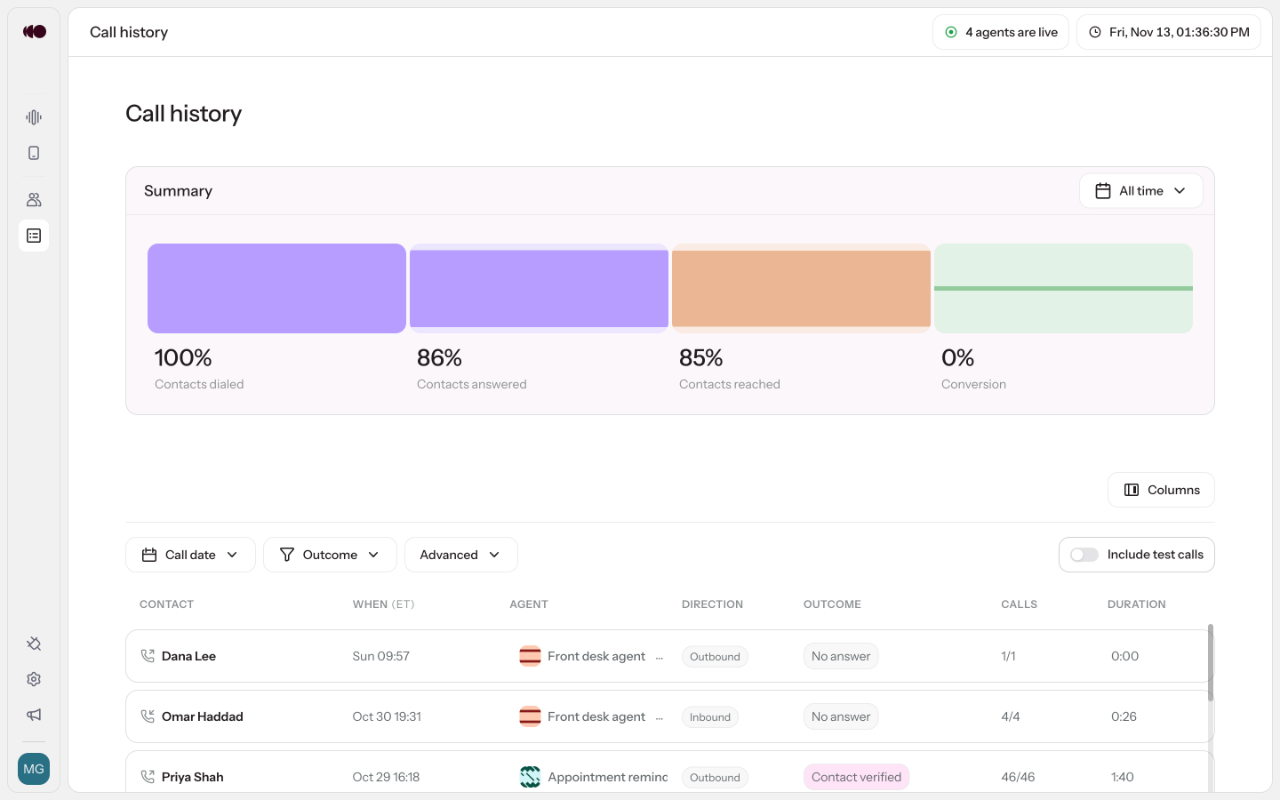
The Summary panel at the top shows a funnel of contacts, not calls:
- Contacts dialed: unique contacts with at least one call in the range. Always 100%.
- Contacts answered: share of those contacts whose calls got answered.
- Contacts reached: share whose calls got at least as far as identifying the contact. The agent dashboard's Contacts reached counts something else: unique contacts with an answered call.
- Conversion: share whose calls ended Converted.
Hover a stage to see the count, for example "120 of 400 contacts". Pick the range in the panel's menu: All time, Today, Last 24 hours, Last 7 days or Last 30 days. Calls with no contact are not counted.
Read the table
Columns:
- Contact: the contact's name, or the phone number when the contact has no name. An icon shows the call type; hover it for Incoming, Outgoing or Test call (with who placed it, when known). A test call shows the name of the person who ran it.
- When: start time in the Account's time zone, shown in the header (for example "WHEN (GMT+2)"). Calls in progress show Live and are pinned to the top.
- Phone: the contact's number. Hidden by default.
- Agent: the Voice agent that handled the call. Click it to open the agent. Human actor means a person handled it.
- Direction: Outbound or Inbound.
- Outcome: how the call ended. "-" means no outcome yet.
- Calls: the attempt number out of the agent's maximum attempts for the contact, for example
2/3. - Duration: minutes and seconds, or Live.
Click Columns to show or hide columns. Contact can't be hidden. More rows load as you scroll.
What each outcome means
Each outcome's ID is in parentheses. Outcomes where no person spoke on the call:
- New (
new): the call was created but hasn't been placed yet. - Busy (
busy): the line was busy. - No answer (
no_answer): no one picked up. - Voicemail (
voicemail): the call reached voicemail. - IVR (
ivr): an automated phone menu answered. - Invalid number (
invalid_number), Carrier blocked (carrier_blocked): the phone carrier rejected the call. - Unknown (
unknown): a call that lasted zero seconds.
Outcomes where the contact or another person spoke:
- Answered (
answered): someone picked up but the call reached no other outcome. The Dialer retries it, like No answer. - Contact verified (
contact_verified), Identified (identified): the agent confirmed it was speaking to the contact. - Qualified (
qualified), Disqualified (disqualified), Converted (converted): set by the agent's call flow when the call reaches a goal path that sets that call result. - DNC (
do_not_call): the contact asked not to be called again. Harmony stops calling the contact. - Not interested (
not_interested): the contact declined. - Callback requested (
callback_requested): the contact asked to be called later. The Dialer calls again, up to 2 extra calls. - Human busy (
human_busy): the contact said they can't talk now. - Message left with gatekeeper (
message_left_with_gatekeeper): someone other than the contact took a message. - Wrong number (
wrong_number): the person who answered isn't the contact. - Wrong language (
wrong_language): the contact speaks a language the agent doesn't support. - Neutral (
neutral_value_call): the call ended without a clear result.
Filter the list
The filter row above the table:
- Call date: All time, Today, Last 24 hours, Last 7 days or Last 30 days. The button then reads, for example, Called last 7 days. This is the same setting as the Summary range; changing one changes the other.
- Outcome: tick or untick outcomes. All outcomes selects or clears them all. The button shows what is filtered, for example "Outcome - 2 hidden" or "Outcome - 3 selected".
- Advanced: Agent (one or more agents; left-nav page only) and Direction (Any direction, Outbound, Inbound). The button shows how many advanced filters are on, for example "Advanced / 2".
- Clear: appears when any filter is on and resets all of them, including Include test calls.
There is no text search over the list. Filters are kept in the page URL, so a copied URL keeps them.
Save an outcome selection as a favorite view
- Set the outcomes you want in Outcome.
- In the same menu, under Favorite views, click Save current view....
- Enter a View name (up to 60 characters) and click Save view. Reusing a name replaces that view ("This replaces your saved view ...").
Click a saved view to apply it. Delete a view removes one. Favorite views save outcomes only, and are stored in this browser for your user; they don't follow you to another browser or teammate.
Include test calls
Test calls made from the agent editor are left out of the list and the Summary by default. Turn on Include test calls (right of the filters) to show them. The setting is remembered in this browser.
Open a call
Click a row. The Call details drawer opens, and the URL gets ?callId=<call ID>, so the URL opens the same call.
Header actions:
- Up and down arrows (Previous call, Next call), or the keys K and J, move through the rows of the current list.
- The link icon (Copy link to call) copies a link. For an agent's call it opens the call in that agent's Call history.
- View contact opens the contact. Not shown for test calls.
Call details shows Contact number, Agent number, Time, Contact timezone, Duration, Call number (attempt number), Direction (Out or In) and Outcome.
When the call has a recording, an audio player sits under the header. Click play to listen, or the download button (Download recording) to open the recording file in a new tab.
Overview tab
- Summary: one sentence about what happened, or "No call summary available.".
- Contact fields: the contact's fields, including custom fields.
- Collected fields: values the agent learned on the call that differ from what Harmony sent for the contact.
Transcript tab
The conversation line by line, with the Agent and Contact lines. Agent lines show the goal the agent was working on. Values the agent collected appear as markers in the conversation.
- Search transcript finds text in the transcript.
- Download transcript saves a text file named
call-transcript-<call ID>.txt, one line per turn, such as[00:12] Agent: .... - Hover a line and click the play button ("Play recording from 0:12") to play the recording from that line. It appears only when the call has a recording.
- When an agent line carries reasoning, a Response reasoning toggle appears under it. It lists each part of the line (Intro, Acknowledges, Lead-in, Response or Ask/Answer/Says, Nudge), where it came from (Goal, Goal (AI), Q&A, Knowledge, Voicemail, Idle nudge, System) and the goal. The arrow (Open what controls this) opens the agent's Call flow at that goal.
- If the call was handed to a person, "Timing and the rest of the call will appear once the recording is transcribed." shows until the recording is transcribed; "The recording couldn't be transcribed." means it failed.
Fix an agent line with Siena
- On the Transcript tab, hover a line the agent said.
- Click the sparkle button, Edit with Siena.
- The drawer closes and the agent's Call flow opens with Siena. The conversation up to that line is attached to Siena's input.
- Type what the agent should have done and send it.
If the agent's script changed after the call, the attachment notes "Script version vN changed after this call; the current script may differ." Siena's changes go to your draft and reach contacts only after you publish. The button appears only on the agent's lines, and not on lines after the call was handed to a person. Siena's input is disabled for roles that can't edit agents, such as Viewer.
With MCP tools
- Find calls:
calls_searchwith any ofagentId,contactId,from/to,outcome(one value or a list),direction(outboundorinbound) andsearch(part of a contact name or phone number). Test calls are left out unlessincludePreviews: true. Page withnextToken. Each row has alinkthat opens the call's drawer in Call history. - Read one call:
call_getwithcallId. It returns the outcome, summary,collectedFields,attemptNumber,endReasonandendedBy. AddincludeTranscript: truefor the transcript. - Explain why the agent said something:
call_getwithdetail: "trace". Each agent line gets its reasoning: the goals it acted on, the parts of the line and their sources, knowledge offered, the model's thinking and tool calls, and timing. Calls recorded before reasoning was available have none. - Count or rate calls:
analytics_querywithsource: "calls", filtering or grouping onresult(the outcome values above) orcall_direction. Filters onanswered,contact_verified,identified,qualifiedandconvertedmatch every call that reached at least that stage;calls_search'soutcomematches the final outcome exactly, so the two can disagree. - Read calls in bulk, since the app has no export of the call list:
calls_search, thencall_getfor each call.
No MCP tool downloads a recording, saves favorite views, or opens Siena on a line; use the click paths above.
Good to know
- The drawer header's Outcome shows the internal name in title case, so the table's DNC reads "Do Not Call" there and Neutral reads "Neutral Value Call".
- The Summary on the left-nav page always covers all agents; the Agent, Outcome and Direction filters change the table only. On an agent's Call history tab the Summary covers that agent.
- There is no export of the call list. Export one call's transcript with Download transcript.
- Contact fields shows the contact's fields as they are now, not as they were when the call was placed.
- An empty table says "No calls were made yet" until an agent makes a call, or "No matching results" when filters hide every call.