Add contacts and assign them to an agent
Contacts are the people your Voice agents call. Adding a contact to Harmony and assigning it to an agent are one step: every way of adding contacts in the Harmony app asks for the agent that should call them. Once assigned, a published agent places outgoing calls to the contact according to its Dialer settings.
Where to find it
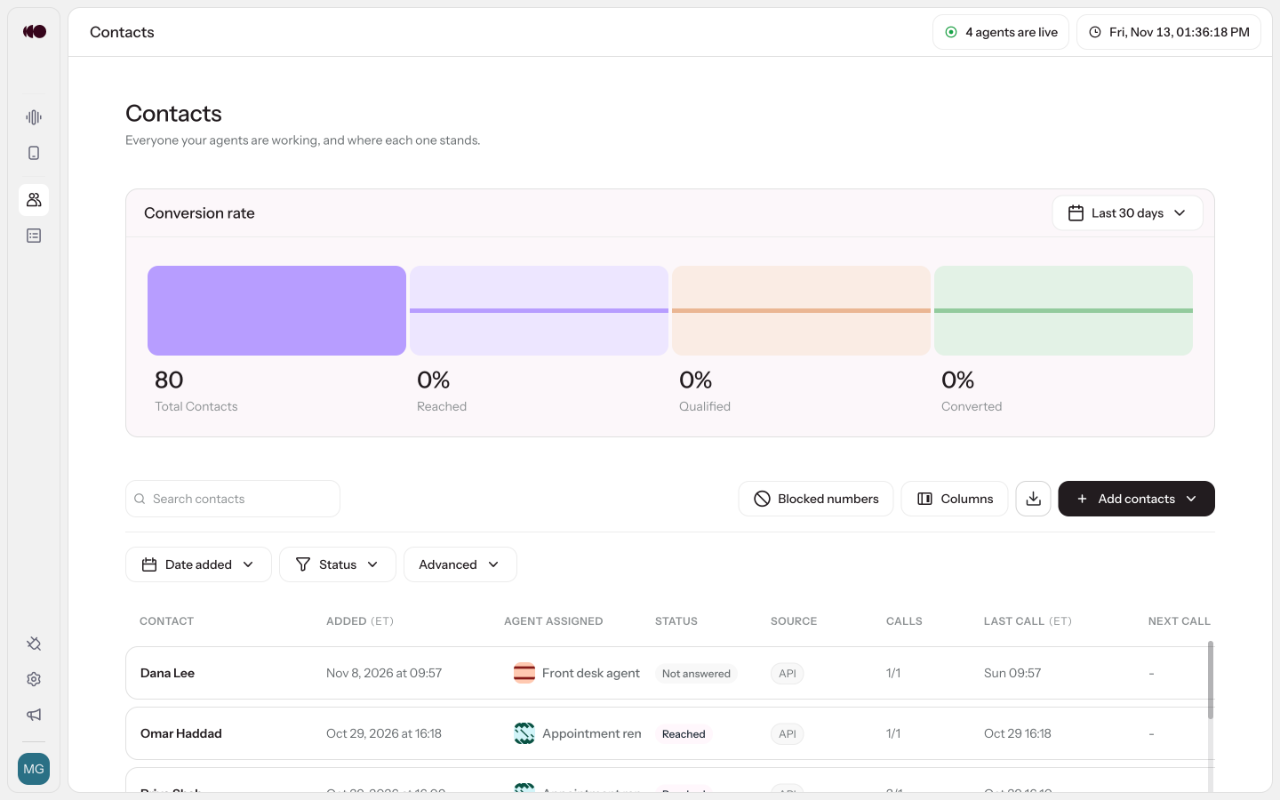
- All contacts in the Account: Contacts in the left nav.
- Contacts assigned to one agent: Agents > agent > Monitor > Contacts. The page is titled Agent contacts and shows the contacts last assigned to that agent, including those whose calls have ended. Contacts added here are assigned to this agent by default.
- Custom contact fields and defaults: Settings > Contact fields.
Both contact pages have the same toolbar: Search contacts, Blocked numbers, Columns, the export button, and Add contacts. The Add contacts menu has two sections: Connect a source (HubSpot, monday.com) and Add directly (Add manually, Upload CSV, API).
Add one contact
- Click Add contacts > Add manually.
- Enter Phone (required). Optionally fill First name, Last name, Location, Timezone, and any custom fields.
- Under Route to an agent, pick the agent. On an agent's Contacts tab it is already selected.
- Click Add contact.
The toast Contact added means a new contact was created. Contact updated with "A contact with this phone number already existed." means the phone matched an existing contact, which was updated and assigned instead.
Import contacts from a CSV file
- Click Add contacts > Upload CSV. The Import CSV drawer opens.
- Upload file: drop a
.csvfile or click browse. The file needs a header row and a phone column whose header is one of Phone, Phone Number, phone_number, Mobile, Mobile Phone, Cell, Tel, or Telephone (case, spaces, and punctuation are ignored). Download template gives a CSV with every contact field as a column. - The drawer shows the row count and, if some rows can't be imported, an error count such as 3 errors. Click the error count to download
<file name>-errors.csv, which holds those rows with an Import error column (Missing phone number or Invalid phone number). - Route to an agent: pick the agent.
- Map contact fields: click the N of M fields mapped card to review the mapping. Columns are mapped automatically from their headers. For each field, pick a column or Don't import. The phone column is fixed to the one detected in step 2. The name switch chooses First & last (First name and Last name columns) or Full name (one column that Harmony splits into first and last name). One column can feed several fields.
- Click Import N contacts.
The drawer closes and a toast shows progress. When it finishes, it reports N contacts imported and, if Harmony rejected any, N contacts could not be imported. Rows with errors from step 3 are never sent.
Only existing contact fields can be mapped. To import a column that matches no field, first add the field under Settings > Contact fields (see Contact fields and time zones), then upload the file again.
Closing the drawer or removing the file after uploading asks Discard this upload?.
Add contacts from HubSpot or monday.com
Under Connect a source, pick HubSpot or monday.com. The panel connects the account if needed, then shows which HubSpot property or monday column fills each Harmony contact field. Contacts don't arrive from this panel: a HubSpot workflow or monday automation sends each contact to Harmony with Harmony's enroll action, which names the agent. See Integrations.
Add contacts with the Public API
Click Add contacts > API for a guided request:
- API key: Create API key, or Manage API keys if one exists.
- Send request: select the agent, then review the generated cURL or Edit payload. A request holds up to 1,000 contacts.
- Send test request sends it from the browser with your signed-in session. It creates real contacts.
The request is POST /api/v1/contacts/bulk (Public API "Import contacts") with assignmentOptions.workflowId set to the agent's workflow ID. Contacts it can't save come back in rejected with their reason. Other Public API contact endpoints: "Create or update a contact" (one contact, optional enrollment), "Update a contact by external ID", "Update contacts by filter", "Get a contact", "List contacts", and "List contacts as CSV".
assignmentOptions.reEnroll together with enforceCallNow assigns the contact again even if that agent already called it, ignores another agent's ongoing assignment, and dials right away instead of waiting for calling hours.
Phone numbers
Harmony stores every phone number in international (E.164) form, such as +14155550123.
- A number starting with
+or00is read as international. - Any other number is read as a local number in the contact's Location country. When Location is empty or can't be read, it uses the country of the Account's default location (Settings > Contact fields > Location > If empty, assume).
- With neither, a local number is invalid. The add form then shows Enter a valid phone number that starts with + and the country code.
Numbers that can't be read are rejected; the contact isn't saved.
Duplicates
By default a contact is identified by its phone number. Adding a contact whose phone number already exists in the Account updates that contact instead of creating a second one, in every add method. Values you send replace the stored ones, except Language, which is only filled when empty. Fields and custom fields you don't send keep their values.
What starts calling a contact
Assigning a contact to an agent:
- Sets the contact's status to Assigned and resets its call count for the new assignment.
- Queues outgoing calls. The agent calls within its calling hours, up to its maximum attempts, both set in Dialer.
The contact's Activity (open the contact) records each step: Assigned to agent with the attempt limit, each call, and why an assignment ended or was skipped. Common reasons nothing happens:
- Skipped, contact already ran this sequence: this agent already had this contact. Adding it again doesn't call it again (the API's
reEnrolldoes). - Skipped, contact is already in another sequence: another agent's assignment for this contact hasn't ended. A contact works with one agent at a time.
- Skipped, contact is marked do not call: the number is blocked.
- Assignment failed · agent is not published: publish the agent, then add the contact again.
- Not called · daily limit reached, will try tomorrow, Not called · calling is paused for this Account, and other Not called reasons.
- The agent is paused: it places no outgoing calls, and waiting contacts are called after it resumes. See Pause and resume.
An assignment ends when all calls are used, the agent completes the contact, the contact opts out, or the number is refused. The timeline shows it as Unassigned from agent with the reason.
Contact statuses
Status is the contact's overall result, not the last call's.
- Not assigned: no agent has the contact, for example added through the API without an agent, or returned here when its number is unblocked.
- Assigned: an agent is working the contact.
- Not answered: all calls were used and no person ever answered.
- Not reached: wrong or invalid number, a number Harmony refused to dial, or all calls used after a person answered without reaching a result.
- Reached: the right person was confirmed on a call.
- Disqualified, Qualified, Converted: the call reached that result.
- Do not call: the contact asked not to be called, or the number was blocked. No agent in the Account calls it.
Statuses only move forward in that order; a later, weaker call result doesn't lower one. A new assignment sets Assigned again.
Older contacts, or contacts whose status was set through the API, can show earlier statuses: New, Invalid, Paused, Unanswered, Unreachable, Connecting, Answered, Contact Verified, Do Not Call, DNC Blocked.
Find contacts
- Search contacts matches every typed word. A word of digits matches anywhere in the phone number, and punctuation is ignored, so
(555) 123-4567finds+15551234567. Other words match the start of the first or last name, ignoring case and accents:nonyfinds Nony,onydoesn't. Search runs over all contacts, not only the loaded rows. - The date button filters by when the contact was added: Added today, Added last 24 hours, Added last 7 days, Added last 30 days. It also sets the range of the Conversion rate panel.
- Status filters by status. Advanced adds Source (HubSpot, monday, Salesforce, API, CSV, Manual, OneAI, Inbound call).
- Clear removes all filters.
- Columns shows or hides table columns, including custom fields. The choice is remembered in this browser.
Click a row to open the contact: its fields, Activity, and Open on CRM for contacts from a connected CRM.
Edit, block, or delete a contact
Open the row's actions menu (Contact actions) or the contact's more actions menu.
- Edit contact changes First name, Last name, Location, and Timezone, then Save changes. Phone and custom fields can't be edited here; to change a custom field, add the contact again with the same phone number and the new value (CSV or API).
- Block number (contact drawer) stops every agent in the Account from calling the number and sets the contact to Do not call. Check Also block incoming calls to also stop agents from answering it. Blocked numbers in the toolbar lists blocked numbers, with Unblock outgoing and Unblock incoming. Unblocking outgoing on a number you blocked returns its contacts to Not assigned; they aren't reassigned, so add them again to call them.
- Delete contact removes the contact and its queued calls from every agent. It can't be undone.
There is no unassign action in the Harmony app. To stop calls to a contact, block its number or delete it. Through the Public API, setting a contact's status to paused stops its queued calls, and connecting queues them again.
Custom fields, location and time zone
Custom fields and the rules for empty locations and time zones are set under Settings > Contact fields; see Contact fields and time zones.
Export contacts
The download button (Export) saves a CSV of the rows currently loaded in the table under the active filters and search. Scroll to load more rows before exporting. It includes every table column, hidden ones too, plus Contact ID. For a full export, use the Public API "List contacts as CSV", which pages through all contacts.
With MCP tools
contacts_search finds contacts. It is read-only. Inputs:
idfor one contact by Harmony ID, orexternalIdwithsourceKindfor a contact by its ID in HubSpot, Salesforce, monday.com, or another source.searchTermfor part of a name or phone number.statusandsourceKind, each one value or a list.statusalso finds the statuses the Status filter doesn't list:not_assigned,assigned,not_answered,not_reached,reached.assignedWorkflowIdfor contacts last assigned to an agent: pass the agent'sworkflowIdfromvoice_agents_list. This includes contacts whose assignment ended.addedSinceandaddedBefore.nextTokenfor the next page, with the same filters.
calls_search with a contact's ID lists its calls. analytics_query counts contacts, for example by status or source.
No MCP tool adds, imports, edits, assigns, blocks, or deletes contacts, or manages contact fields. Do those in the Harmony app as described above, or through the Public API.
Good to know
- Adding contacts in the Harmony app needs a role that can edit both contacts and agents (Admin or Member). For a Viewer, Add manually, Upload CSV, and API are disabled with the tooltip Your role can't edit contacts. Editing, blocking, and deleting need a role that can edit contacts. Adding contact fields and changing defaults need a role that can change settings.
- Every add method in the app requires an agent. The empty-state Add contacts button opens the single-contact form.
- The Status filter doesn't list Not assigned, Assigned, Not answered, Not reached, or Reached.
- The Agent assigned column and an agent's Contacts tab show the agent the contact was last assigned to. A contact who only called in has no assigned agent.
- An import is accepted before each contact is saved, so new rows can take a moment to appear. The page refreshes on its own.
- A contact's Language and Priority can be set by CSV or API but aren't shown on the Contacts page.
- A Location or Timezone value Harmony can't read is saved as empty and noted in the contact's Activity as "Couldn't read".