Set when and how an agent calls
The Dialer screen controls a Voice agent's outgoing calls: the days and hours it may call, how many times it calls each contact and how long it waits between calls, dates it never calls, and dialing details such as how many calls run at once. Changes go to your draft and reach the dialer only after you publish.
Where to find it
Agents > agent > Build > Dialer. The screen has five parts, top to bottom: Working hours, Call sequence, Hot transfer working hours, Blackout dates and Advanced settings. Advanced settings starts collapsed; click the chevron on its right to expand it.
If you see "You can view this agent, but your role can't edit it.", your role lacks the agents:write permission (Viewer). The controls are read-only.
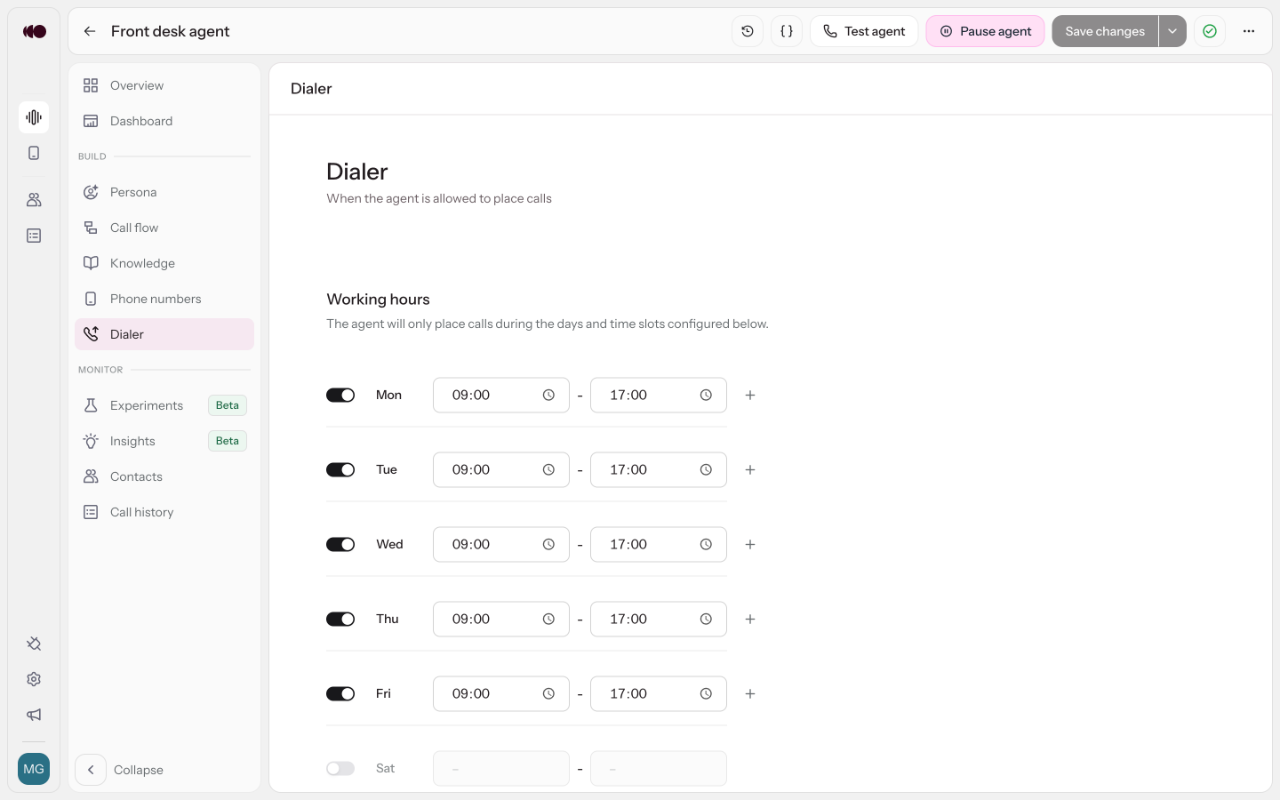
Set working hours
The agent places outgoing calls only inside these hours. A new agent calls Monday to Friday, 09:00 to 17:00.
- Turn a day's switch on to call that day, or off to never call that day. Turning a day on adds a 09:00 to 17:00 slot.
- Set each slot's start and end time.
- Click + (Add time slot) to add another slot to the same day, for example to skip lunch. Click the trash icon (Remove time slot) to remove one.
Working hours are always the contact's local time. A 09:00 to 17:00 slot calls a New York contact from 09:00 to 17:00 New York time and a Los Angeles contact from 09:00 to 17:00 Los Angeles time. There is no setting for one fixed time zone. Every contact has a time zone: either the one it was imported with or one Harmony infers from its location and phone number (see Manage contacts). Inference is set under Settings > Contact fields with Infer timezone from Location and Infer timezone from Phone.
Rules:
- A slot's end time must be after its start time, so a slot can't run past midnight. An invalid slot shows "End time must be after start time", and you can't save or publish ("Fix the invalid dialer working hours before saving").
- A slot that starts before 8 AM or ends after 9 PM shows the warning "Some days have calling hours before 8 AM or after 9 PM. Many regions restrict calls outside these hours." It doesn't block saving.
- With every day off, the agent never places outgoing calls, except a first call made by Call new contacts immediately (below).
Set how many times the agent calls a contact
Under Call sequence:
- Number of calls per contact: total calls, including the first. 1 to 20, default 3. The hint reads "The main call plus N retries", or "A single call — no retries to schedule." for 1.
- Wait time between calls: one row per retry (1st call, 2nd call, …). Each row sets how long to wait after that call, in days (dd, up to 99), hours (hh) and minutes (mm). The minimum is 1 minute; an empty or zero wait goes back to the default when you leave the field. Defaults: 25 hours after the 1st call, 24 hours 30 minutes after each later call.
When the wait ends outside working hours, the retry moves to the next working-hours slot in the contact's time zone.
A call is retried only when it ended as Busy, No answer, Voicemail, Answered, Message left with gatekeeper or Carrier blocked, and the contact still has calls left. These end the sequence at once:
- Invalid number or Wrong number.
- Any other outcome, such as Qualified, Not interested or DNC.
- A last call that was an incoming call from the contact.
Callback requested is the exception: the agent calls back even past Number of calls per contact, up to 2 extra calls. When the contact named a time, the callback is scheduled for that time instead of the wait.
Block dates
Under Blackout dates ("Dates when the agent won't place any calls"):
- Click Add blackout. A row for today appears.
- Set From, To and an optional Reason (for example "Holiday, maintenance, ...").
- Click the trash icon (Remove blackout date) to remove a row.
To add public holidays, click Fill holidays and pick a year (this year or one of the next 5). Harmony adds the upcoming public holidays for the Account's time zone and skips dates already in the list. If none are found it shows "No public holidays found for the account's timezone"; if all are already added, "All YEAR public holidays are already added".
A blackout covers whole days, From through To, and stops all of the agent's outgoing calls on those days whatever the contact's time zone.
Limit calling to transfer team hours
Use Hot transfer working hours when the agent's calls should only happen while your team can take live transfers from it.
- Turn on the switch (Enable hot transfer working hours).
- Leave Same as calling hours on to use the working hours above, or turn it off and set separate Hot transfer hours by day.
- Pick the transfer team's time zone (Transfer team timezone). It starts as the agent's time zone.
- Allow calls out of hot transfer working hours: off (default) means the agent places no outgoing calls while the transfer team is outside its hours. On means it keeps calling anyway.
Hot transfer hours are in the transfer team's time zone, not the contact's.
Adjust advanced settings
Expand Advanced settings ("Fine-tune concurrency, phone number selection, and dialing behavior"):
- Max concurrent calls: how many outgoing calls the agent runs at the same time. 1 to 100, default 1. More contacts waiting than this number are called as earlier calls end.
- Fresh contacts percent: the share of each dialing batch given to contacts not called yet; the rest goes to retries. 0 to 100, default 50. When one group has no one waiting, the other fills the batch.
- Max dialing time before hang-up: hang up when the call isn't answered within this many seconds. 5 to 120, default 26.
- Max call time: end the call when it reaches this many minutes. 1 to 60, default 5.
- Answer incoming calls after: seconds before the agent answers an incoming call. 0 to 60, default 2.
- Auto-avoid voicemail: in seconds, 0 to 60, default 10. When an earlier call to the same contact reached voicemail after ringing longer than this, later calls to that contact hang up one second before that ringing time, so they end before voicemail picks up.
- Call new contacts immediately: dials each contact as soon as it's assigned, even outside working hours. Default off. Only the first call ignores working hours; retries still wait for working hours.
- DNC enabled: checks US numbers against the national do-not-call registry before calling, and skips numbers on it. Default on.
- Round robin per contact: on (default), each call to a contact uses the next of the agent's phone numbers. Off, a contact keeps getting called from the same number.
- Limit to same country: choose only among the agent's numbers in the contact's country. Default off.
- Prefer country code: prefer a number in the contact's country. Default on.
- Prefer same area code: prefer a number with the contact's area code. Default on.
- Prefer regional area code: prefer a number with a similar area code. Default on.
The last four choose among the numbers on the agent's Phone numbers screen (see Assign phone numbers).
How assigned contacts get called
- You assign contacts to the agent (see Manage contacts). A contact marked do-not-call is skipped and never queued.
- The contact waits in the agent's queue. When its local time is inside working hours, no blackout date applies, and the agent has a free call slot under Max concurrent calls, the agent dials it. Contacts with a higher priority or a requested callback go first.
- After each call, the outcome decides whether a retry is scheduled (see the call sequence above). The contact's assignment ends when the sequence ends.
With Call new contacts immediately on, the first call ignores working hours.
Contacts that would be called outside working hours stay queued and are called at the start of their next slot. Nothing is dropped.
Save and publish
Every change on this screen goes to your draft, your unsaved working copy of the agent.
- Save & publish changes (top right) saves a new version and makes it live. The dialer uses the new settings from then on.
- The arrow beside it opens Save (a new version that isn't live), Discard and Compare with draft.
Saving without publishing doesn't change how the agent dials.
With MCP tools
Read the current settings with voice_agent_get: settings shows timezone, callingHours, retryLimit, retryIntervals, maxConcurrentCalls and hotTransferEnabled. Use detail: "full" to see the whole config.dialer.
Change them with voice_agent_edit and a set_settings edit. It writes your Shared draft, the same draft the Dialer screen shows; publish with voice_agent_publish to make it live.
{
  "op": "set_settings",
  "settings": {
    "dialer": {
      "weekdaySlots": { "saturday": [{ "start": "10:00", "end": "14:00" }], "sunday": [] },
      "retryLimit": 4,
      "retryIntervals": [120, 1440, 2880],
      "advanced": { "maxConcurrentCalls": 5, "callNow": true }
    }
  }
}
weekdaySlots: lowercase weekdays;HH:MM24-hour times; end after start. Each day you pass replaces that day, days you leave out are kept, and[]means no calls that day.retryLimit(1 to 20) andretryIntervals(minutes, at least 1, one per retry, soretryLimitminus 1 entries). Intervals are reused in a cycle when there are fewer entries than retries.blackoutDates: replaces the whole list. Each entry needsid,fromandtoasYYYY-MM-DD, andreason(may be empty).hotTransfer: fields you pass replace those fields:enabled,sameAsCallingHours,expertHumansWorkingHours,allowOutsideExpertHumansWorkingHours,expertHumansTimezone(an IANA name).advanced: merged field by field. Keys:maxConcurrentCalls,freshContactsPercent,maxDialSeconds,maxCallSeconds(seconds; the screen shows minutes),inboundCallAnswerDelay,autoAvoidVoicemailThreshold,callNow,dncEnabled,roundRobinPerContact,limitToSameCountry,preferCountryCode,preferSameAreaCode,preferRegionalAreaCode. The API checks only minimums, so keep values inside the screen's ranges above.
No MCP tool changes the agent's own time zone, fills public holidays, or assigns contacts.
Good to know
- Pausing the agent stops outgoing calls; queued contacts are called after you resume. See Pause and resume an agent.
- The agent's own time zone is the Account's time zone when the agent was created. You can't change it. It is the starting time zone for Transfer team timezone; working hours never use it.
- A contact whose time zone doesn't match its phone number's country can be refused when assigned, and the assignment fails.
- On a trial Account, Harmony calls at most 10 different numbers a day (UTC). A contact over the limit isn't called and doesn't use up an attempt; it is queued again for the agent's next working time after midnight UTC. Its activity shows "Not called" with the reason.
- When calling is paused or suspended for the whole Account, contact calls are held, not lost.
- A contact's next call time already scheduled still has to fall inside working hours when it comes due.