Give an agent knowledge
The Knowledge screen holds what a Voice agent can draw on when a contact asks something the call flow doesn't script. It has three views: Sources (files, websites and text the agent looks things up in), Built-in responses (answers to ten common questions, such as "Are you an AI?") and Faq (your own questions with set answers).
Where to find it
Agents > agent > Build > Knowledge. The views are tabs at the top: Sources, Built-in responses, Faq.
Add a file
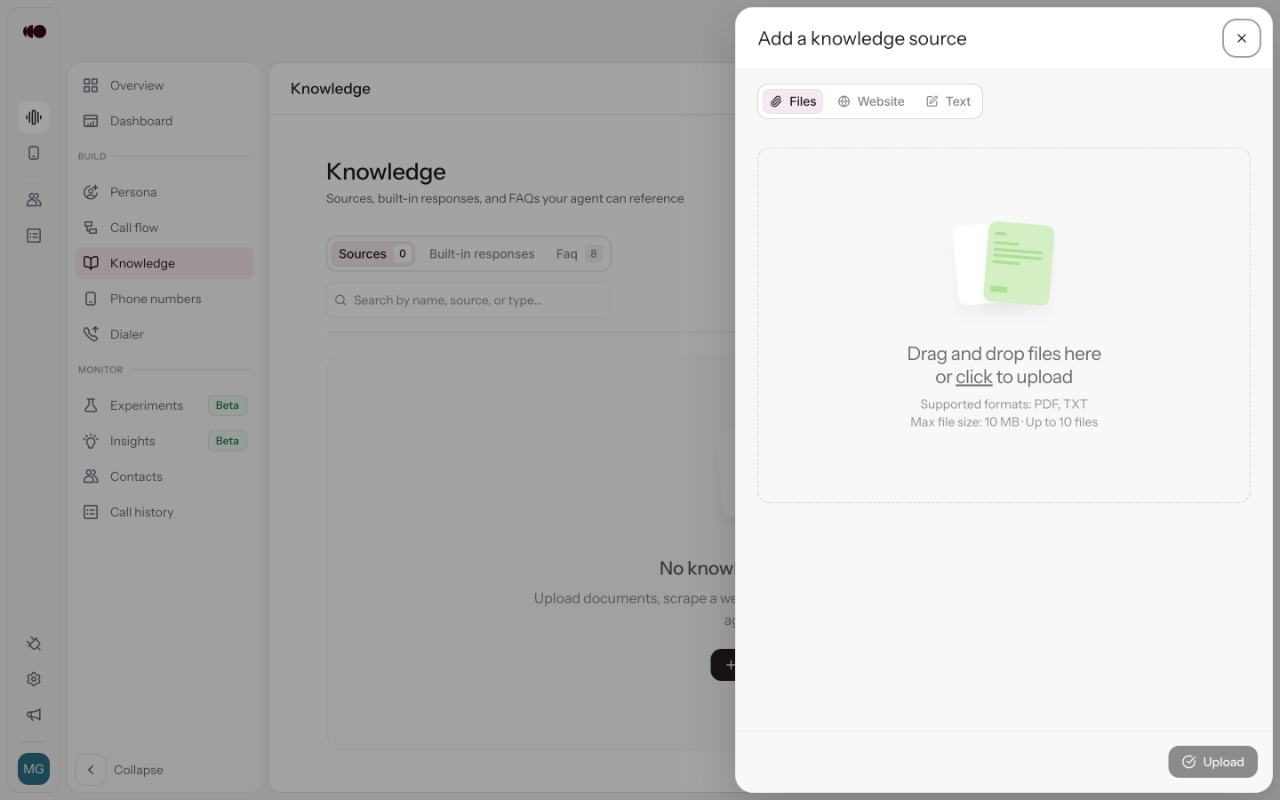
- Open the Sources tab and click Add sources. The Add a knowledge source drawer opens on the Files tab. You can also drag files onto the Sources list to open the drawer with them.
- Drop or pick up to 10 files. Only PDF (
.pdf) and plain text (.txt) files are accepted, each up to 10 MB. - Click Upload. Each file shows its progress. When all succeed, the button becomes Done.
If some files fail, the drawer shows "Some files failed to upload. Remove them and try again."
Add a website
- Click Add sources, then the Website tab.
- In Website URL, type the domain or page, without
https://(the field adds it). Every page Harmony can crawl on that domain becomes knowledge. - Optional: change the crawl settings shown under the URL:
- Max pages per crawl: the crawl stops after this many pages, from 1 to 2,000. An agent that never changed it uses 500.
- Skip pages under these paths: one path per line, up to 50.
/blogskips/blogand every page under it. Paths can't contain spaces,?,#or*.
- Click Add website.
The website appears in the list once crawling starts, as one row per domain. Its Type shows Web with the page count. If the crawl can't start, a "Website not added" message appears; check the address and try again.
Crawl settings belong to the agent, not to one website: a change applies to every website on that agent.
Add text
- Click Add sources, then the Text tab.
- Fill in Source name and Text content. Both are required.
- Click Add text.
Use this for facts that aren't in a document, such as pricing, opening hours or policies.
Check, view and delete sources
The Sources list shows Name, Type (File, Text or Web), Status and Last updated. Search filters by name, source or type.
- Processing: Harmony is still reading the source. The agent can't use it yet and you can't open it.
- Indexed: ready. The agent can use it on calls.
- Failed: Harmony couldn't read it. Delete it and upload or add it again.
To view a source, click its row or choose View from its Actions menu. A file or text source shows its content, Source name, Status and Last updated. A website opens a page tree of everything crawled on that domain; click a page to read the text Harmony extracted from it.
To delete a source, choose Delete from its Actions menu and confirm. Deleting a file or text source removes it permanently. Deleting a website removes all of that domain's pages from the agent. Inside a website's page tree, you can also delete a single page or a folder with its delete icon.
Fix a website that stopped at the page limit
When a crawl reaches Max pages per crawl, the website row shows "N skipped" next to its status. Those pages were found but not indexed, so the agent can't use them.
- Click the website row. A banner says how many pages weren't indexed.
- Click Raise limit and continue. This opens Crawl settings.
- Raise Max pages per crawl, or add paths to skip so fewer pages count toward the limit.
- Click Save and recrawl and confirm.
Recrawling saves the settings for every website on the agent, removes that domain's pages, and crawls it again. Until the new crawl finishes, the agent can't use that website's pages. To recrawl after changing a site, open the website and use Crawl settings > Save and recrawl the same way.
Edit the built-in responses
Built-in responses lists ten common questions with the agent's answer to each:
- What is your name?
- Why are you calling?
- Which company are you from?
- Voicemail Message
- Are you an AI?
- I won't speak to AI
- How did you get my number?
- I want to talk to a human
- Is this a scam?
- Is this call being recorded?
A card without your own answer shows the default answer in grey, for example "Yes, I am an AI Agent, I hope that's OK.", and the agent uses that default on calls. To change one, click its card, write the answer in Answer, and click Save changes. You can't rename these questions or add phrasings. Answers can include fields from the call flow, such as {%agent_name%}; type { to add one.
Add a Q&A answer
- Open the Faq tab and click Add response.
- In Question, write the question the way a contact might ask it.
- In Answer, write what the agent should say. Type
{to insert a field. - Optional: under Question variants, click Add variant for each other phrasing of the same question.
- Optional: turn on Forced exact answer to make the agent say the answer word for word. When it's off, the agent answers in its own words, using your answer as guidance.
- Click Add response.
To change or remove an answer, open its card menu and choose Edit, Duplicate or Delete. Each card also has its own Forced exact answer switch.
Make the changes live
Sources and Q&A answers save differently:
- Sources (files, websites, text) attach to the agent itself, not to a version. They take effect as soon as they are Indexed, on every version, with no publishing.
- Built-in responses and Faq answers are part of the agent's draft. Calls don't use them until you click Save & publish changes in the agent header.
Test it
Click Test agent in the agent header and ask a question your sources or Q&A answers cover. The test uses your unsaved built-in responses and Faq answers, so you don't need to publish first. Wait until the sources show Indexed.
With MCP tools
- Files, websites and text sources: no MCP tool adds, lists, recrawls or deletes them.
- Faq answers:
voice_agent_editwithop: "upsert_response"andresponse: { questions: [question, ...variants], answers: [answer] }. Passidfromvoice_agent_get'scustomResponsesto edit one; omit it to add one.op: "delete_response"withidremoves one. These ops can't set Forced exact answer. - Built-in responses:
voice_agent_editwithop: "set_default_metadata"andvalueskeyed by the response's placeholder, such as{ "%responses_are_you_ai%": "Yes, I'm an AI assistant." }. voice_agent_editchanges the Shared draft. Try it withvoice_agent_preview_chatorvoice_agent_preview_call, and make it live withvoice_agent_publish.voice_agent_createwithcopyFromAgentIdcopies the source agent's knowledge to the new agent.- To see where a line came from, open the call afterwards with
call_getanddetail: "trace": each agent line lists the knowledge offered to the model, with its title and retrieval score, and shows whether the line came from a Q&A answer or from knowledge.
Good to know
- Only PDF and
.txtfiles can be uploaded. Convert Word, CSV or other formats to PDF or paste them as text. - Knowledge holds facts; it doesn't change what the agent tries to do on the call. To make the agent ask, say or collect something, change the call flow (see Build the call flow).
- A crawl follows links across the whole registered domain, so
acme.comcan also reach subdomains such ascareers.acme.com. Use Skip pages under these paths to leave out sections you don't want. - When you add a website, the crawl settings in the drawer are the agent's current settings; changing them there changes them for every website on the agent.
- While you edit an experiment variant, the Sources tab is hidden: sources belong to the whole agent, so a variant can't change them. Built-in responses and Faq answers can differ per variant (see Run an experiment).
- A text source can't be edited. To change one, delete it and add it again.
- Duplicating an agent copies its files, text sources, websites and crawl settings to the copy.
- Users whose role can't edit agents see Add sources, Add response, Delete and Save and recrawl disabled, with the tooltip "Your role can't edit agents".
- If the agent answered without using a source, check that the source is Indexed, that a website page wasn't among the skipped pages, and that the page tree shows extracted text for the page.