Get phone numbers and assign them to an agent
A Voice agent calls contacts from, and answers calls on, the phone numbers assigned to it. Buy numbers on the Phone numbers page, register your business so carriers trust your caller ID, then assign numbers to an agent. An agent with no assigned number has no number for contacts to call and no caller ID of its own.
Where to find it
- Buy, browse and assign numbers: Phone numbers in the left nav.
- Numbers assigned to one agent: Agents > agent > Build > Phone numbers.
- Profile name, capabilities and Caller ID Reputation: Settings > Telephony profiles, or Profile settings on the Phone numbers page.
- Numbers that test calls may dial: Settings > Account > Verified phone numbers.
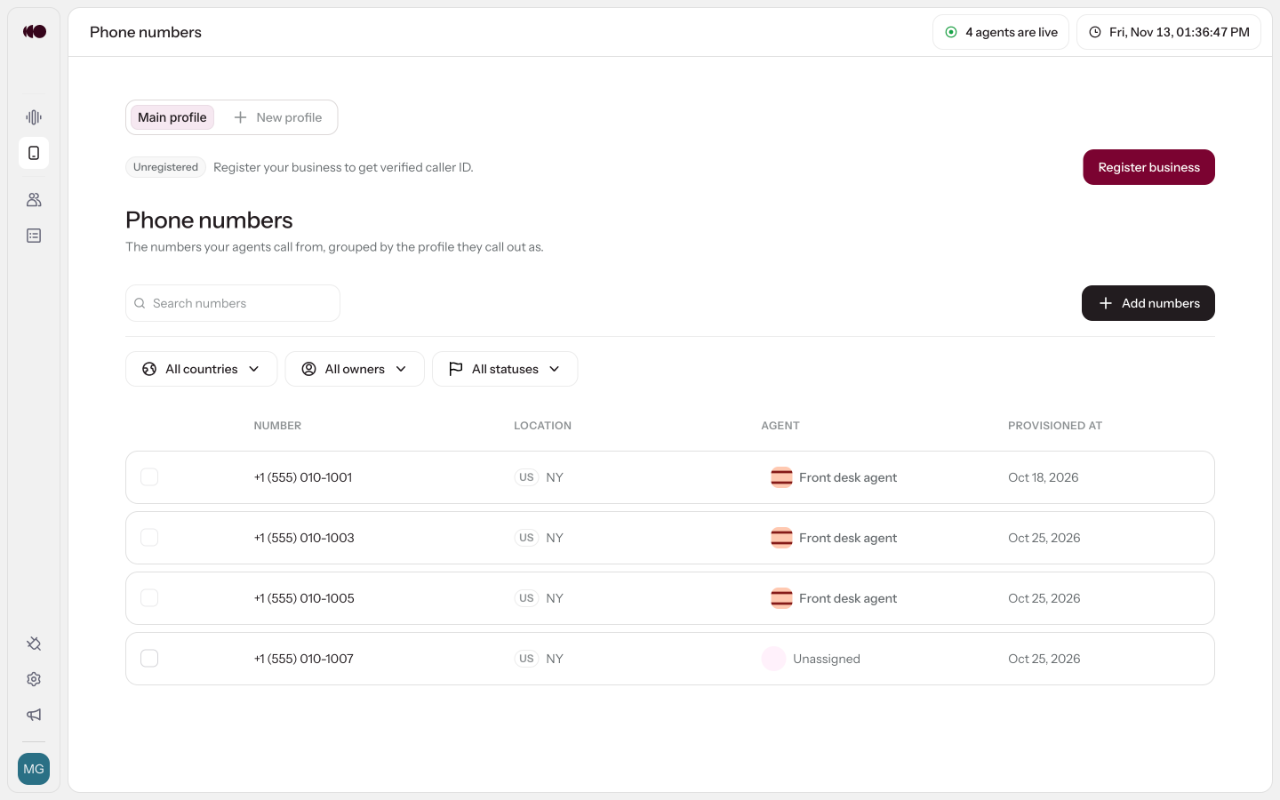
How numbers are organized
Every number belongs to a telephony profile: the business identity your agents call as, the countries it can reach, and the capabilities its business registration unlocks. An Account can have several profiles. The Phone numbers page shows one tab per profile, and each tab lists that profile's numbers.
A profile's countries decide which numbers you can buy in it:
- A United States profile can buy numbers in the United States, Canada and Israel. You can buy before you register the business.
- A United Kingdom profile can buy United Kingdom numbers only after its UK registration is approved.
Get your first number
When the Account has no profile yet, the Phone numbers page shows "Get a phone number".
- Click Get started. Harmony creates a United States profile named after your Account.
- If your plan allows buying, the Buy numbers dialog opens. Continue with "Buy numbers" below.
To start with a UK business instead, click Start UK registration under "Registering a UK business?". This opens the UK registration form; you can buy UK numbers once it is approved.
Buy numbers
- Open the profile's tab on the Phone numbers page and click Add numbers.
- Pick a country. The dialog lists only the countries this profile can buy in.
- Pick a region, or for the United States an area code (search with Search states, cities, or area codes). Each choice goes into the cart with its current monthly price.
- Set the quantity of each cart line. One purchase holds at most 3 numbers.
- Check Monthly total and click Buy 1 number or Buy N numbers.
A success message shows "Bought N numbers". If a region runs out of numbers, you get "Bought X of Y numbers" and only the bought numbers are added. New numbers appear in the table as Active and Unassigned.
The dialog shows each number's monthly price before you buy. The charge is added to your subscription.
Why Add numbers is disabled
Hover the button to see the reason:
- "Upgrade your plan to add numbers to your account": the Account is on the free plan or a trial and has no free numbers left. Free and trial Accounts that include free numbers see their price as Free and can buy only United States, Canada or United Kingdom numbers, up to the free numbers remaining.
- "You can add numbers once your registration starts processing": the profile is still being set up.
- "Available once your UK registration is approved": a UK profile whose registration is not approved yet.
- A permissions message: your role cannot buy numbers (see "Good to know").
Register your business
Registration verifies your business with carriers. For a United States profile it unlocks verified calling (STIR/SHAKEN signing, so calls are less likely to be labeled spam) and an optional caller ID name. For a UK profile it is required before you can buy UK numbers.
- On a profile tab marked Unregistered, click Register business. To create a separate profile, click New profile > Register your business, then choose United States or United Kingdom under "Where will this profile call from?". You can't change the country after you start registering.
- Fill in the steps. United States: Business details, Representative, Caller ID. United Kingdom: Business details, Representative.
- Click Submit registration. Save and exit keeps a draft to finish later.
After you submit, the profile shows "Registration in progress". United States numbers you already have stay usable during review. When it is approved, submitted details become read-only. If the provider rejects something, the profile shows Action needed; open View registration, click Correct registration details, fix the fields and resubmit.
Rules the form checks:
- Email address must use your business website's domain.
- Phone number with country code must be a mobile number where Twilio can reach the representative, not a virtual number.
- Caller ID display name is optional: 1–15 characters, starting with a letter, then letters, numbers, spaces, periods or commas.
- A UK address cannot be a PO box; Companies House number is 8 characters.
Manage a profile
On the Phone numbers page, a registered profile tab shows Profile settings and View registration. Profile settings opens the profile under Settings > Telephony profiles, where you can:
- Rename it with Edit (Profile name is shown in Harmony only; your registered business details don't change).
- See the status of its Capabilities: Verified Calling, Text Messaging, Caller ID Name, Caller ID Passthrough.
- Jump back to its numbers with View phone numbers.
Assign numbers to an agent
- On the Phone numbers page, tick the checkbox of each number to assign. Only Active, unassigned numbers can be ticked, up to 10 at a time.
- In the bar that appears ("N selected"), pick the Voice agent.
- Click Assign.
The Agent column then shows the agent, and the number appears under the agent's Build > Phone numbers. Assignment takes effect without publishing the agent.
Rules:
- A number belongs to at most one agent. To move it, remove it from its current agent first.
- An agent can have several numbers, but all of them must come from the same telephony profile.
- Only Voice agents can be picked.
Remove a number from an agent
- Go to Agents > agent > Build > Phone numbers.
- Click the trash icon on the number's row.
The message "Number unassigned" confirms it. The number stays in your Account as Unassigned and keeps its monthly charge. An unassigned number doesn't answer incoming calls. Manage on this screen opens the Phone numbers page.
How an agent uses its numbers
- Outgoing calls: an agent needs at least one assigned number to place outgoing calls. It calls from one of them, which is the caller ID the contact sees. With several numbers, the agent's Build > Dialer > Advanced settings decide which one: Round robin per contact, Limit to same country, Prefer country code, Prefer same area code and Prefer regional area code. See Dialer settings.
- Incoming calls: a call to an assigned number is answered by that number's agent. Answer incoming calls after under the same Advanced settings sets the delay before it answers. A paused agent stops outgoing calls but still answers incoming calls; see Pause and resume an agent.
Caller ID Reputation
Caller ID Reputation monitors a profile's United States numbers for spam labels at AT&T, T-Mobile and Verizon, files carrier redress to clear a flagged number, and pulls flagged numbers from dialing. When it is on for a profile:
- The profile under Settings > Telephony profiles shows a 🇺🇸 Caller ID Reputation card with Monitoring, Remediation, the carrier flags cleared in the last 30 days, and the Protection level:
- Relaxed: pull a number from dialing only when all three carriers flag it.
- Balanced: pull it when at least two carriers flag it.
- Aggressive: pull it as soon as one carrier flags it.
- The Phone numbers page shows a health summary, a Health column and a health filter. Health values: Healthy (clean on every carrier checked), Flagged, Quarantined (flagged past your protection level) and Awaiting check (first carrier check pending).
- Harmony always keeps at least one number dialing in each state, even if it's flagged.
When it is off for a profile, none of these appear. To turn on Caller ID Reputation, contact Harmony.
Verified phone numbers for test calls
Test calls from the Phone tab of the test panel dial only verified numbers. Team members' own phones count as verified. To add another:
- Go to Settings > Account > Verified phone numbers and click Add number.
- Enter a mobile number with its country code (for example +15551234567) and click Send code.
- Enter the 6-digit code from the SMS and click Verify.
Remove takes a number off the list; test calls can't dial it until someone verifies it again. Adding and removing need the agents:write permission.
With MCP tools
No MCP tool buys, registers, assigns or removes phone numbers; use the click paths above. Related tools:
voice_agent_preview_callcalls a Verified phone number (phoneNumber, E.164), or your own phone whenphoneNumberis omitted.analytics_queryon thecallssource can group or count byfrom_number, the caller ID used on outgoing calls.voice_agent_createwithcopyFromAgentIdcopies an agent without its phone numbers, so assign numbers to the copy before it can make calls.
Good to know
- Permissions: buying numbers needs
telephony:writeandtelephony:purchase; creating or registering a profile needstelephony:write; assigning and removing numbers needsagents:write. Admins and Members have all of these; Viewers see the pages read-only, with these controls disabled. - New profile also lists Connect Twilio and SIP trunking, but both are disabled.
- Only Active numbers can be assigned.
- The Phone numbers page filters by country, owner (agent or Unassigned), status and, with Caller ID Reputation on, health. Search matches number, city or agent name.
- Contacts marked do not call are skipped by the dialer; see Contacts.