Edit an agent's call flow
The call flow is a Voice agent's script: the goals it works through on a call, what it says in each, the fields it collects, and where the call goes next. Edit it when you change what the agent says or does on calls, then test the change and publish it. For how goals, transitions, conditions and tools behave at call time, read the script reference.
Where to find it
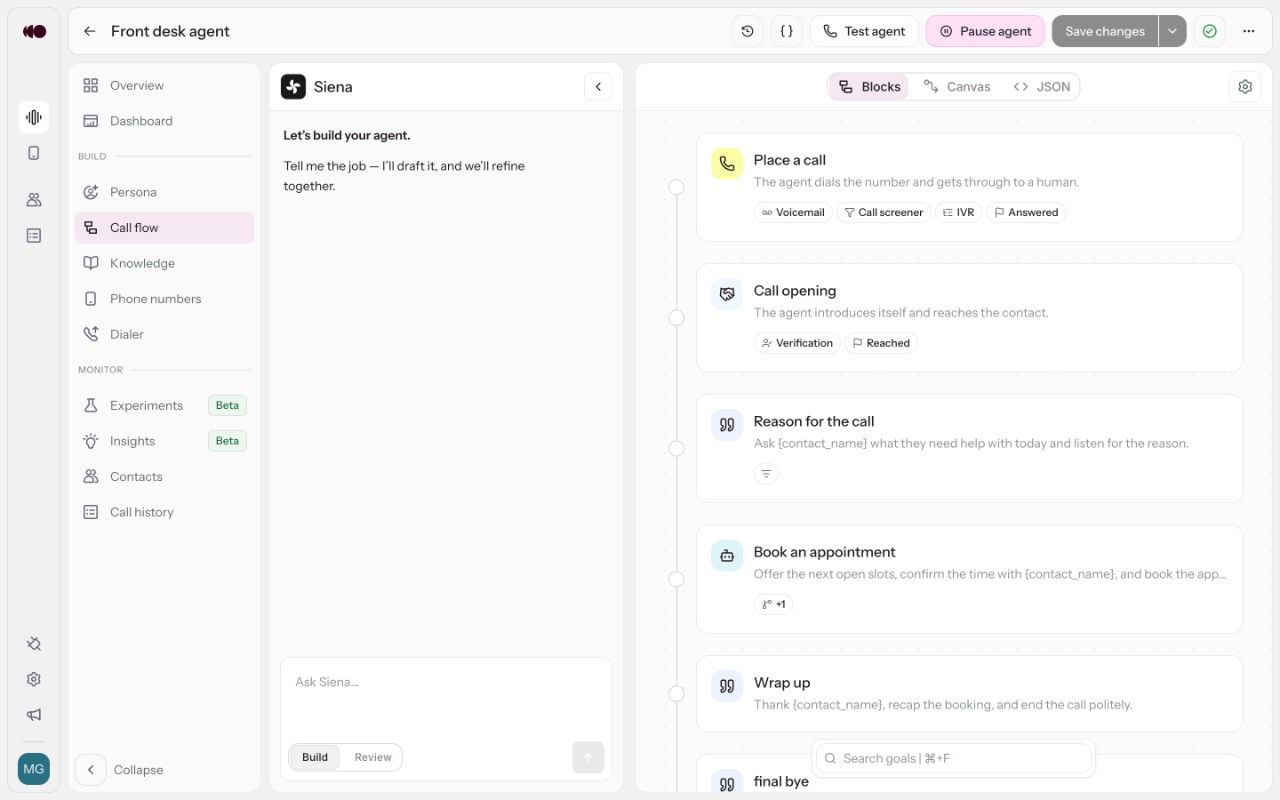
Agents > agent > Build > Call flow.
The tab has three views, picked from the switch at the top of the editor: Blocks (the default, a list of goals), Canvas (goals and transitions as a graph) and JSON (the script as JSON). All views edit the same script.
The agent header, shown on every tab of the agent, holds the controls this page also uses: the Versions menu, Fields, Test agent, the save and publish button, and the issues icon.
A Chat agent has no call flow; this page covers Voice agents only.
How your edits are kept
- Every edit in the editor goes into your draft. The version picker shows it as Draft (unsaved).
- Nothing reaches contacts until you publish. Saving creates a new numbered version; publishing makes a version live.
- Your unsaved edits are written to Harmony when you start a test or save. Leaving the agent with unsaved edits opens Unsaved changes with Discard changes and Save.
- When you come back to an agent with unsaved edits stored in Harmony, the editor loads them and shows "Restored your unsaved changes from" a time, with a Discard action.
Add a goal
- Open Call flow in Blocks view.
- Click the + on the line between two goals (Add a goal here) or below the last goal (Add a goal). In an empty script, click Add goal.
- Pick a goal kind from the menu, or type to search it: Subagent, Say something, Ask a question, Hot transfer, Schedule a meeting, Confirm contact details or Sequence.
- The new goal is inserted at that spot and its panel opens.
To add a goal inside another goal:
- Sequence: expand it and click Add sub-goal.
- An Ask a question goal with Multiple choice choices: expand the choice and click Add goal to choice.
To copy a goal, open its ⋯ (Goal settings) menu, or right-click its card, and choose Duplicate goal. The copy takes the goal's name plus " copy" and is placed right after the original.
Place a call and Call opening are pinned at the top of every call flow. They can't be deleted, duplicated or disabled, and no goal can be inserted directly after Place a call.
Change the call flow with Siena
Siena's panel sits on the left of the call flow. If it is collapsed, click Edit with Siena in the call flow header.
- Make sure the toggle under the panel's input is on Build.
- Type the change in Ask Siena… and press Enter. Describe the outcome you want, for example "Ask about budget before booking the meeting" or "Don't let her discuss pricing".
- To point Siena at a specific goal, type
@and pick the goal, or open the goal's settings menu on the canvas and choose Ask Siena. The goal is attached to your message as a card. - Siena applies the change and replies in two or three sentences. Each change appears in the panel as a step; click a changed goal there to jump to it on the canvas.
Siena can change:
- The call flow: add, edit, move, and delete goals and Q&A responses, and set field values (such as the agent's name).
- The persona: who the agent is, its objective, guardrails, and other persona fields. See Set the persona.
- The voice. She picks from Harmony's voice catalog by name or trait ("a British male voice").
- The pronunciation dictionary: how the agent says brand names, acronyms, and other words.
- Transfer and calendar details, only through a setup card she shows you, never by writing a number herself.
Siena cannot change:
- Knowledge items. She can change how a goal uses knowledge, not the knowledge content. See Add knowledge.
- Experiments. Add them yourself. See Run experiments.
- Anything outside the agent's call flow, persona, voice, and pronunciation, such as phone numbers, dialer settings, and contacts.
If your request is unclear, Siena asks one short question before editing. For a large rewrite, or an empty call flow, she may interview you again as she does for a new agent.
Have Siena review the call flow
- Ask in the panel, for example "Look this over", or open the agent's issues list in the header and click Review with Siena. Siena records what she finds as issues on the call flow.
- With the toggle on Build, Siena may go on to fix what she found. With the toggle on Review, she only reviews and never changes the agent.
- To have Siena fix specific issues, click Fix with Siena in the issues list, or Fix [code] with Siena on one issue. This runs an edit even when the toggle is on Review.
- After a build or a larger edit, Siena reviews her own work before replying.
Fix a line from a test call or a real call
- In a test call, hover over a line the agent said and click Edit with Siena. In call history, the same button is on each agent line of a call's transcript and opens the agent's Call flow with that turn attached. Then type what was wrong.
- When a call ran on an older version, Siena is told that the script changed since that call.
How Siena's changes are saved
- Siena edits your unsaved draft of the agent, the same draft you edit by hand. Her changes appear on the canvas as she makes them; there is no separate accept step. Like your own edits, they stay in your browser until you start a test or save.
- Her changes are not live. Save and publish the agent as you would after your own edits; calls use the published version only.
- Siena does not work while you edit an experiment's variant; the panel is hidden then.
Siena's panel
- Reset conversation (the circular arrow in the panel header) clears the chat. It does not undo changes Siena already made.
- The conversation is kept in your browser for each agent version, for up to 14 days.
- Collapse Siena (the arrow in the panel header) hides the panel; Edit with Siena brings it back.
- Each Account has a daily Siena allowance, reset each day at midnight UTC.
Reorder goals
The editor has no control to change goal order. In Canvas, dragging a goal moves it on the canvas only; it doesn't change the order. To put a goal somewhere else, move it in the JSON view, add a new goal at the right spot and delete the old one, or ask Siena (see "Change the call flow with Siena" above).
Delete or disable a goal
- Delete: select the goal and press Delete or Backspace, or choose Delete goal from its ⋯ menu or right-click menu. Confirm Delete goal?. The goal and every goal nested in it are removed from the draft.
- Delete a choice's goals: select the choice and press Delete, then confirm Delete choice goals?.
- Disable: choose Disable goal from the ⋯ menu. The agent skips a disabled goal, so it never triggers. Turn it back on with Enable goal.
Edit a goal
Click a goal card (in Blocks or Canvas) to open its panel. Click the name at the top of the panel to rename it. An Ask a question or Say something goal's panel has these sections:
- Goal triggers: when the goal can start. Trigger proactively lets the agent start it on its own. Trigger in reaction to phrases opens Trigger phrases (what the contact says to start it), Counterexamples, Active during and After goal completes (Return to where the call left off or Continue to next goal). Conditions limits when the goal can trigger; with no condition it can always trigger.
- Lines to say: the exact lines the agent reads out. Click Add line for another line.
- Instructions (titled Then, follow instructions when the goal has lines): what the agent does in its own words. Click Add instructions.
- Tools: actions the agent runs during the goal. Click Add a tool, then set the Trigger (Agent decided or On an event) and Actions such as Set contact state, Send a text message or Call a webhook.
- Field collection: the field the goal fills from the contact's answer. On a Say something goal, click Collect a field to start collecting one. Set the Field type, such as Free text, Yes / No, Multiple choice, Email or Date. Optional rows: Passive detection, Pushback (what the agent does when the contact won't answer) and Acknowledgement (Auto, Custom or Disabled). Stop collecting a field removes the field.
- Transitions: where the call goes when the goal is complete. Click Add transition, pick the target under Go to (Script goals or Built-in goals) and set the Transition trigger. Repeat goal sets when the agent moves on: Until the field is collected (ask) or Until the contact replies (say), Until the agent says the message (say only), A set number of times with At most N times, or Indefinitely.
Each line has a settings menu (Message settings). Under Add: Conditions (say the line only when the condition holds) and Lead-in (a short opener before the line). Under Advanced: Never repeat, Say exactly, Disable lead-ins and Ignore interruptions.
Hot transfer, Schedule a meeting, Confirm contact details, Subagent and Sequence goals have their own panels. A Schedule a meeting goal needs a connected calendar provider; connecting one leaves the page, so the editor offers Save & connect first.
Insert fields in a line
Any line, instruction or condition text can include fields, which the agent fills in at call time.
- In the text, type
{or click Insert field. - Pick a field. The list shows contact fields, collected fields and system fields.
- To use a field that doesn't exist yet, type its name and pick Contact field or Collected field under "New field". Creating a contact field needs a role that can edit both settings and contacts.
- The field appears as a chip. Hover or click it for options:
- If empty: what the agent says when the field has no value (blank means "say nothing"). This text can't include
. ! / : ? [ {or}. - Read out: how the value is spoken, such as Dates & numbers, Digits, grouped, Digit by digit, Phone number, Spelled out, Spelled phonetically or Code, spelled out.
- If empty: what the agent says when the field has no value (blank means "say nothing"). This text can't include
- To make part of a line depend on a field, pick Conditional text in the same list, then fill If, Say and Otherwise say. A condition here can't include
: ? " {or}.
A chip for a name no field has is marked No field has this name; pick a field or create one from the chip.
To see every field, click Fields in the agent header. It lists Collected fields (with Add field and a Default value for each), Contact fields (with Manage, which opens the Account's contact fields) and System fields (set automatically at call time).
Set a condition
Conditions appear on goal triggers, lines, transitions and choices. The builder has one row per comparison: Field, Comparison (such as =, is one of, is set, contains, days from today <, was completed) and Value. Click Add for another row and click and or or to switch between "all must match" and "any can match". Edit as text switches to the written condition; a condition the builder can't show opens as text. How conditions are evaluated is in the script reference.
Fix script issues
The issues icon in the agent header shows open Script issues and integration problems. A goal with issues shows "N issues" on its card, and its panel marks the affected fields.
- Filter the list with Errors, Warnings and Dismissed.
- Click an issue to go to it, or use Fix with Siena on one issue or on all open issues.
- Review with Siena asks Siena to review the whole script.
- Expand an issue and click Dismiss to hide it. A dismissal is saved with the version and lapses when the goal or field it points at changes. Restore issue brings it back.
Script issues never block saving or publishing. Saving does fail when the script fails Harmony's own check: the editor shows "Couldn't save: the script failed the check" with the first problems found.
Test your changes
- Click Test agent in the agent header.
- Pick a tab:
- Chat: type as the contact. Choose Outbound call (outgoing) or Inbound call (incoming), then Start test chat. Type
/resetor click Reset chat to start over. - Voice: talk to the agent through your microphone. Click Start test call.
- Phone: the agent calls a real phone. Enter First name, Last name and Phone number, then Start test call. Test calls dial only Verified phone numbers; an unverified number shows Verify this number.
- Chat: type as the contact. Choose Outbound call (outgoing) or Inbound call (incoming), then Start test chat. Type
- Optional: Contact fields sets field values the agent sees on the test, and Variant picks an Experiment Variant (Chat and Voice only).
The test runs on your unsaved edits when you have any ("Testing unsaved changes"), otherwise on the version selected in Versions. While a test runs, the header button shows Live test chat, Live test voice or Live test call; click it to reopen the test. In the test, a goal can be opened with Edit goal, and an agent line can be sent to Siena with Edit with Siena.
Save and publish
The main button in the agent header changes with the state of the draft:
- Save & publish changes: you have unsaved edits. It saves them as a new version and makes that version live.
- Publish: no unsaved edits, and the selected saved version isn't live. It makes that version live.
- Save changes (disabled): no unsaved edits, and the selected version is already live.
The arrow next to it opens Save (create a version without publishing), Discard (drop all unsaved edits) and, with unsaved edits, Compare with draft.
A saved version is titled "Version N" by default. If publishing would drop an Experiment that has ended, Publishing removes ended experiments asks you to confirm with Publish anyway.
Switch, compare or roll back versions
Open Versions (the version icon in the agent header). The live version has a dot next to it.
- Select a version to view and edit it. With unsaved edits, Unsaved changes asks you to Save or Discard changes first. Edits to an older version are saved as a new version; they never overwrite it.
- Roll back: select an older version, then click Publish.
- Rename a version with Rename version. Delete one with Delete version; the live version and an agent's only version can't be deleted.
- Compare versions shows two versions side by side, with Show only changes and Wrap text.
When a teammate saves a new version while you work, New version available offers Switch to latest, which discards your unsaved edits on this version.
With MCP tools
- Read the call flow:
voice_agent_getwithagentId. It returns the goals with their IDs, collected fields, custom responses, recent versions andsharedDraft. PasssharedDraft's id asversionIdto read unsaved edits;detail: "full"returns the whole config. - Edit:
voice_agent_editwithagentIdandedits, applied in order (all or nothing). It writes to the same Shared draft the editor shows.upsert_goalwithgoal(omitgoal.idto add one), andparent_id,after_idorbefore_idfor its place.move_goalwithidandparent_id,after_idorbefore_id. This is the only way to reorder goals without retyping them.delete_goalwithid; nested goals go with it.upsert_responseanddelete_responsemanage the agent's custom responses, shown in the editor under Knowledge (see Knowledge).set_default_metadatawithvalues(and optionalremove) sets the default values shown under Fields.startFromVersionIddiscards the Shared draft and starts a new one from that saved version.- The response lists script issues; they never block. Read
docs_readtopicscriptbefore writing goals.
- Test:
voice_agent_preview_chat(you play the contact, one turn per call;end: truesaves it as a call) orvoice_agent_preview_call(rings a Verified phone number). Both run on the Shared draft when there is one. - Publish:
voice_agent_publishwithagentIdsaves the Shared draft as a new version and makes it live; optionaltitlenames it. PassversionIdto publish a saved version instead, which rolls back when it's older. - No MCP tool edits a Chat agent.
- An MCP client acting as you edits the same draft. If it changes while you have no unsaved edits in the editor, the editor loads it ("Your draft was updated in another session"). If you have edits, Draft changed in another session asks you to choose Load new draft (drops your edits in this tab) or Keep my edits (they replace the other session's changes the next time you test or save).
Good to know
- If you can't edit, your role lacks agent edit permission: the agent shows "You can view this agent, but your role can't edit it." and the add, edit, test, save and publish controls are hidden or disabled.
- Undo and Redo are in Canvas view only.
- Saving is blocked, with a reason on the save button, when the dialer working hours or pronunciation words have errors, or when the draft would break an Experiment.
- A test chat keeps the version it started on. After editing, start a new test to hear the change.
- A collected field is named after its goal; conditions refer to it by that name.
- While you edit an Experiment Variant, the Siena panel is hidden and changed or new goals show Changed or New badges; see Experiments.
- Model and temperature are under the gear icon in the editor (Agent settings > Model configuration).