Set an agent's persona
The Persona screen sets who a Voice agent is on a call: the name it uses, the company it represents, its identity, objective and guardrails, its voice and how that voice sounds, the words it pronounces differently, and the languages it speaks. Changes go to your draft and reach contacts only after you publish.
Where to find it
Agents > agent > Build > Persona. The screen has three tabs: General Behavior, Voice and Languages.
If you see "You can view this agent, but your role can't edit it.", your role lacks the agents:write permission. The fields are read-only and Save & publish changes is disabled.
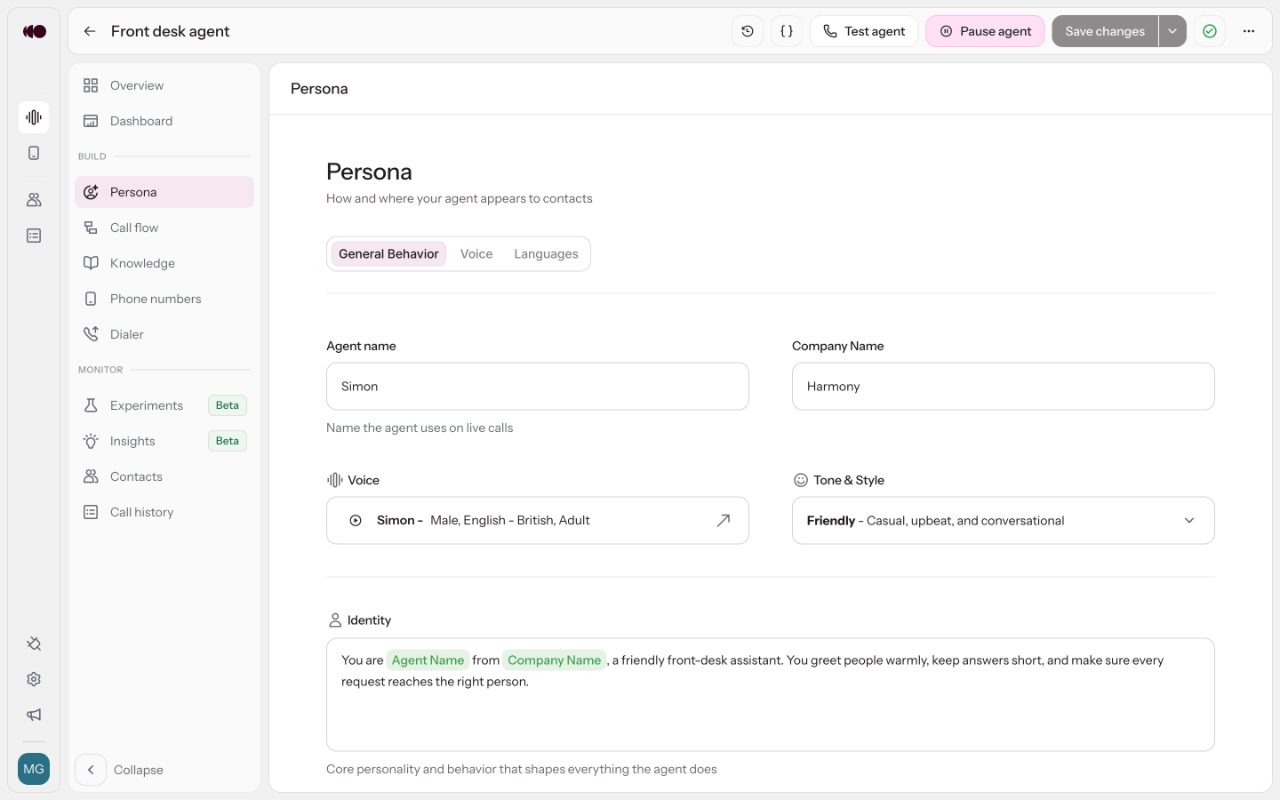
Set the agent's name, company and behavior
On General Behavior:
- Agent name: the name the agent uses on live calls. Press Enter or click outside the field to apply it. An empty name is ignored and the previous name stays.
- Company Name: the company the agent represents.
- Voice: shows the selected voice. Click it to open the Voice tab. The play button plays that voice's sample.
- Tone & Style: pick one of Neutral, Warm, Formal, Friendly, Empathetic, Confident, Concise or Enthusiastic. The tone is added to the agent's prompt and shapes how it speaks. For more precise control, describe the tone in Identity or Additional instructions (Optional).
- Identity: who the agent is and how it behaves. This shapes everything the agent does.
- Objective: why the agent is calling and who it calls.
- Guardrails: what the agent must never say or do, whatever the contact asks.
- Additional instructions (Optional): any other guidance for the agent.
Identity, Objective, Guardrails and Additional instructions (Optional) accept fields from the script, so the text can include values such as the contact's name. A field can show an issue note under it when the text has a problem.
Choose a voice
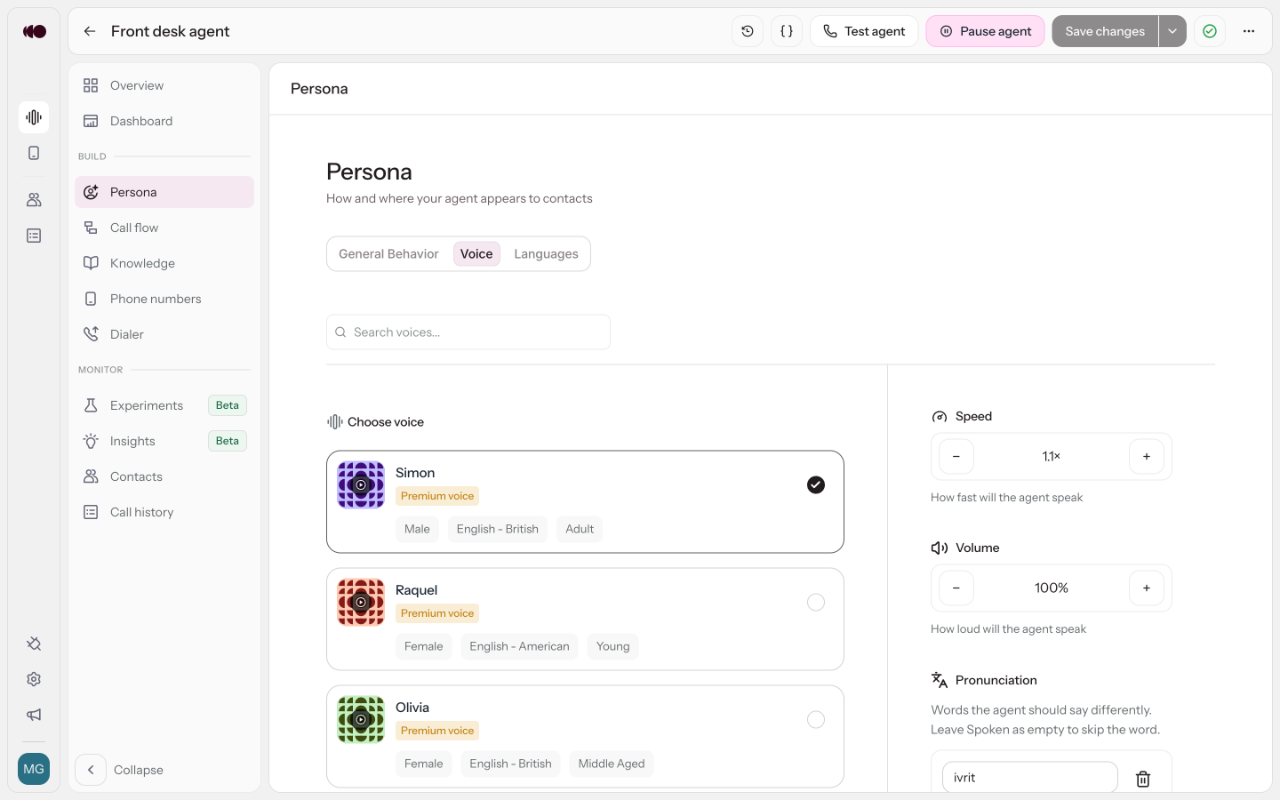
On Voice:
- Use Search voices... to filter by voice name or tag (for example a gender or accent tag).
- Click the play button on a voice's avatar to hear its sample.
- Click a voice card to select it. Premium voice marks premium voices.
Selecting a voice also sets the agent's gender (%agent_gender%) to the voice's gender, and resets Emotion to neutral.
Premium voices
The six premium voices, with the IDs set_voice takes:
- Simon: male, British English, adult.
EZbdG2VhYlAw4QBNJnYe - Raquel: female, American English, young.
C01Jm1JS2Fi2tUdF5nZX - Olivia: female, British English, middle-aged.
dPXlAsegNP5PQUtdGOFa - Talia: female, American English, young.
62KnlCDSwsvFlozWxTdp - Abi: female, British English, young.
7z86FmcIa7GsCCATmiZy - Beka: female, American English, young.
dp67thqO6rCHvdVYpp2z
Adjust speed, volume and emotion
The panel beside the voice list holds:
- Speed: 0.5 to 2.0 in steps of 0.1. Default 1.0. Only ElevenLabs voices support it; for other voices it is disabled with "Speed controls are not available for this voice".
- Volume: 0% to 200% in steps of 10. Default 100%. Works with every voice.
- Emotion: shown only for Cartesia voices. Choose Neutral, Calm, Content, Excited, Sad, Angry or Scared. Neutral lets the voice follow the text.
Voice samples play at the current Speed and Volume.
Fix how the agent pronounces words
The Pronunciation section on the Voice tab lists words the agent should say differently.
- Click Add word.
- In Written as, enter the word or phrase as it appears in the agent's text, for example
RWInvest. - In Spoken as, spell it the way it should sound, for example
R W Invest. Leave Spoken as empty to make the agent skip the word. - Click the trash icon to remove a word.
Rules for Written as, shown as errors under the field:
- Required, up to 64 characters.
- Must start and end with a letter or number.
- Can't contain
.?!:;…or a dash followed by a space. - Each word can appear once; matching ignores case.
Spoken as takes up to 128 characters. The list holds up to 200 words. Terms match whole words or phrases, ignoring case. Call transcripts keep the written form.
You can't save or publish while any pronunciation row has an error ("Fix the pronunciation words in the Voice tab before saving"). A row with both fields empty is dropped on save.
Set the agent's languages
On Languages:
- Under Supported languages, turn on each language the agent may speak. The catalog is English (US and UK), Hebrew, French, German, and Spanish (Spain, Mexico, US and Latin America). At least one must stay on.
- Under Default language, pick the language a call starts in when the contact's language is unknown. The list shows only supported languages.
A call starts in the contact's language when the agent supports it. If you turn off the current default language, the first remaining supported language becomes the default. An agent that never set its languages supports the whole catalog, including languages added later, with English (US) as the default.
Save, test and publish
Every change on this screen goes to your draft, your one unsaved working copy of the agent. Nothing reaches contacts until you publish.
- Save & publish changes (top right) saves the draft as a new version and makes it live.
- The arrow beside it opens Save (saves a new version without making it live), Discard (drops the draft) and Compare with draft.
- Test agent opens a test call on your unsaved changes. Use the Voice or Phone tab to hear the voice, speed, volume and pronunciation; the Chat tab tests behavior in text.
Leaving the agent or switching versions with unsaved changes asks whether to save or discard them.
With MCP tools
Use voice_agent_edit with agentId and an edits list. Read the agent first with voice_agent_get; its persona shows the current company name, identity, objective, tone, guardrails, additional instructions, voice, and languages. Edits go to the Shared draft, the same draft the Persona screen shows.
- Identity texts:
{"op": "set_identity", "identity": {...}}with any ofcoreIdentity,companyName,objective,guardrails,additionalInstructions,toneAndStyle. Fields you leave out are kept.toneAndStyletakesneutral,warm,formal,friendly,empathetic,confident,concise,enthusiastic, ornullto clear it.companyNamealso sets%company_name%. - Agent name:
{"op": "set_default_metadata", "values": {"%agent_name%": "Dana"}}. - Voice:
{"op": "set_voice", "voice_id": "..."}with a voice ID from Harmony's voice catalog, such as a premium voice listed above. It also sets%agent_gender%. It does not import a voice. - Speed and volume:
{"op": "set_settings", "settings": {"voiceSpeed": 1.1, "voiceVolume": 120}}. Speed 0.5 to 2, volume 0 to 200. - Languages:
{"op": "set_settings", "settings": {"supportedLanguages": ["en-US", "es-MX"], "defaultLanguage": "en-US"}}.defaultLanguagemust be one ofsupportedLanguages. Locales:en-US,en-GB,he-IL,fr-FR,de-DE,es-ES,es-MX,es-US,es-419. - Pronunciation:
{"op": "upsert_pronunciation_term", "term": "RWInvest", "spoken_as": "R W Invest"}adds or updates a term;{"op": "delete_pronunciation_term", "term": "RWInvest"}removes one (matched ignoring case). The same rules as the UI apply.
No MCP tool sets Emotion.
To hear the result, use voice_agent_preview_call (rings a Verified phone number of the Account, by default your own) or voice_agent_preview_chat (text only, so it won't show voice or pronunciation). Both run on the Shared draft by default. To go live, use voice_agent_publish.
If an MCP client edits your draft while you have the agent open with edits of your own, Harmony asks whether to Load new draft or Keep my edits.
Good to know
- Changes in the browser stay local until you save, publish or start a test. Starting a test uploads your draft, which Harmony restores the next time you open the agent ("Restored your unsaved changes from ...").
- Pronunciation belongs to the agent version, so it takes effect when that version is published.
- While you edit an Experiment Variant (see Run an experiment), the Pronunciation section is locked with "A variant can't change this", and a Variant can't clear Company Name ("A variant can't remove the company name").
- The avatar on each voice card is decoration for that voice. It is not the agent's avatar, which Harmony generates from the agent's ID and which you can't change.