Build a new agent
Create a Voice agent from Agents > Create agent. There are three ways to start: describe the job and let Siena, Harmony's AI builder, build it; pick a template, which gives Siena a ready-made description; or start from scratch with Harmony's default call flow and build it yourself.
Where to find it
Agents > Create agent (or the new-agent card). If the Account also has Chat agents, pick Voice agent first. Siena builds Voice agents only.
Build it with Siena
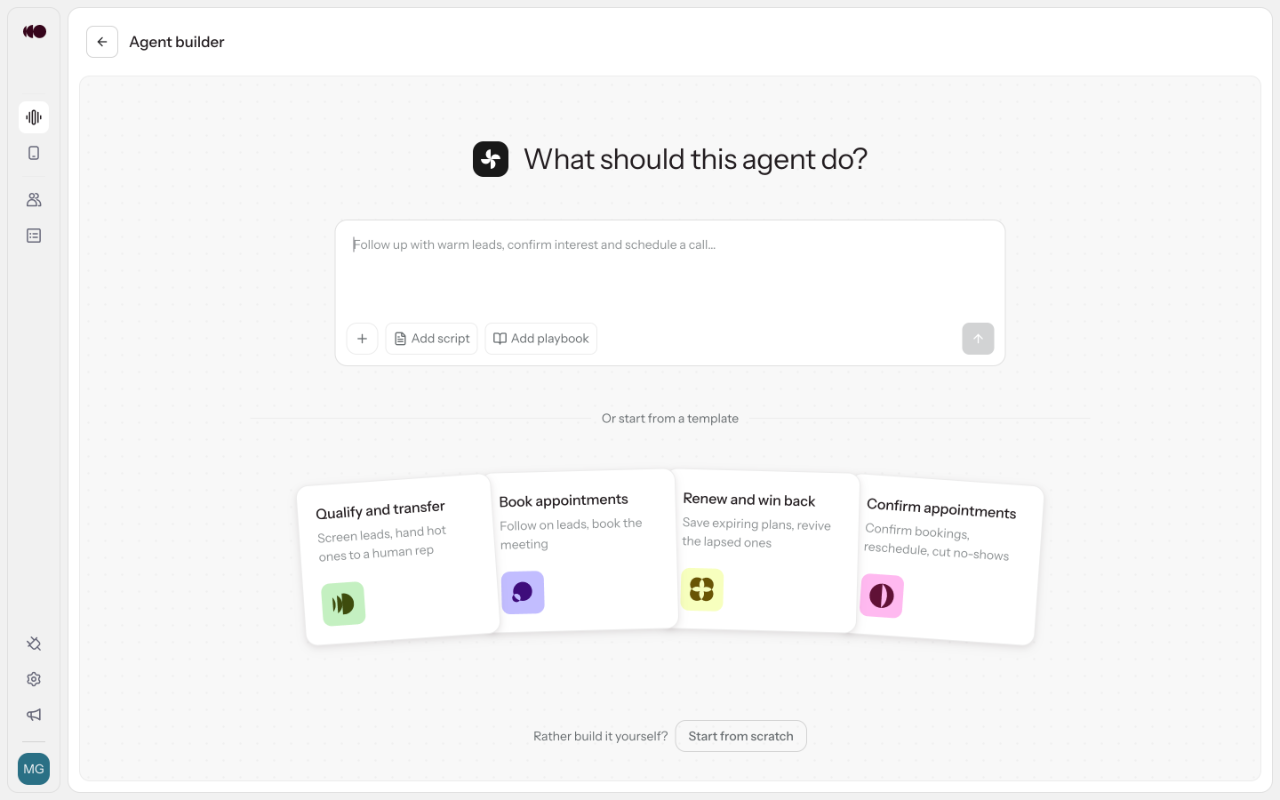
- Go to Agents > Create agent. The agent builder opens with the question What should this agent do?
- Describe the job in the text box. You can also click a template card under Or start from a template (Qualify and transfer, Book appointments, Renew and win back, Confirm appointments) to fill the box with a ready-made description, then edit it.
- Optional: attach your existing material with Add script, Add playbook, or the + (Add content) button, or drag files onto the box. See "Attach files" below.
- Include your company's website (for example
acme.com) if you want Siena to read it. She looks up a website only when your message contains a URL or domain, never from a company name alone. - Click Send. Siena reads everything you gave her and asks the questions she still needs, usually about three, in one batch. Answer each by picking an option, typing your own answer, or skipping it. Click Send answers when done. A skipped question gets a sensible default.
- If the agent transfers calls or books meetings, Siena's questions include setup cards: a transfer card (Transfer number and Placed by) and a calendar card (connect a calendar provider, then Choose a meeting type). The answers are saved into the matching goals after the build.
- Once she has enough, Siena sets the agent's persona, picks a name and voice (unless you gave them), and creates the agent. The agent is named after the persona's name, or "New agent" when there is none, and its first version, "Initial version", is published right away with the persona and voice. Harmony opens the new agent at Build > Call flow, where Siena drafts the call flow goal by goal, checks her own work, fixes what she found, and replies with a short summary and the defaults she assumed.
- Siena usually ends with a question about your business, such as common objections. Answer it in the panel and she adds the answer to the call flow.
What she asks about: the use case, who is on the call (incoming or outgoing calls, and for outgoing calls how the contacts got on the list and why the agent is calling), what the call is about, how the call can end, and the company name if she doesn't already know it. She does not ask about the agent's name, gender, or voice.
Other buttons on the builder:
- Start from scratch (under Rather build it yourself?) or Skip, I'll set it up manually (during the chat): creates an agent named "New agent" with the default script and opens Call flow, without Siena building anything.
- Start over: clears the interview so you can describe the agent again.
- If creating the agent fails three times, Harmony shows Couldn't build the agent. Keep chatting to try again, or build it yourself.
Attach files
- On the new-agent builder only, you can attach up to 5 files of type PDF, DOCX, XLSX, CSV, or TXT, each up to 5 MB.
- Siena reads the text of each file, up to 30,000 characters per file and 80,000 in total. A longer file is cut off and marked truncated.
- Attachments are used for that conversation only. They are not saved to the agent or added as Knowledge items. To give the agent lasting reference material, use Knowledge.
- Password-protected files, files with no text, and other file types are rejected.
With MCP tools
MCP clients don't use Siena. voice_agent_create creates a Voice agent from Harmony's default script, or copies an existing agent with copyFromAgentId (without its phone numbers or contacts). Then write the call flow with voice_agent_edit (see Edit an agent's call flow), test it with voice_agent_preview_chat or voice_agent_preview_call, and make it live with voice_agent_publish. A new agent makes no calls until it is published.
Good to know
- Your role needs permission to edit agents. Without it, the builder's Send button is disabled.
- Siena already knows what your company does. When the Account was created, Harmony read the website at your work email's domain and summarized it. Siena assumes a new agent is for that company unless you name another business or give another website. The summary isn't shown or editable in Harmony; if it describes the wrong company (for example, at an agency), tell Siena who the agent is for.
- Siena names the agent and picks Simon (male) or Raquel (female) as the voice unless you ask for something else. Change either anytime on Persona.
- Siena treats pasted scripts, transcripts, and prompts as material about the agent, not as instructions to her.
- Each Account has a daily Siena allowance, reset each day at midnight UTC. When it runs out, Siena shows Daily Siena limit reached. Resets at a given time.